Getting Started
Getting Started
This page will walk you through your first session in PhotoWorker.
System Requirements
- macOS 14 Sonoma or later
- Apple Silicon processor (M1 or newer)
- 8 GB RAM (16 GB recommended)
Installation
Enter your email and download the archive from photoworker.app, then drag PhotoWorker into your Applications folder. On the first launch, click "Open" in the macOS dialog.
30-day trial, no account or credit card required.
Open a photo folder
Three ways to load photos:
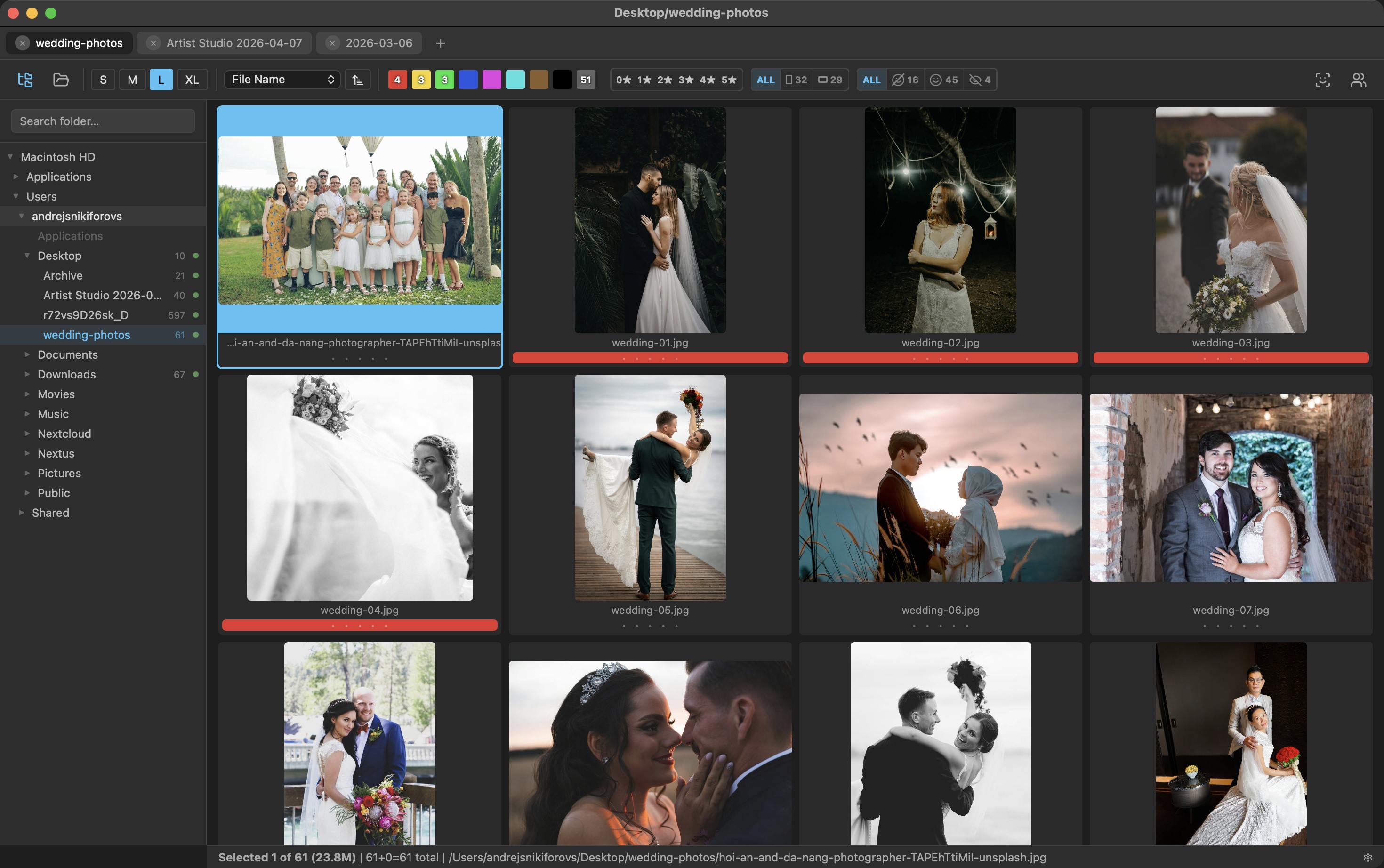
- Drag a folder into the PhotoWorker window
- ⌘O — choose a folder via the dialog. Recent folders are available in File → Open Recent
- Navigator (⌘N) — open the folder tree on the left and click the folder you need
Photos appear immediately. Face detection starts in the background — you can work without waiting for it to finish.
Tip: PhotoWorker opens only the selected folder. The "Show all subfolders" toggle is visible on the tab when subfolders contain images or recursive mode is already enabled — it loads photos from all subfolders.
Basic actions
Navigation
- Move through the gallery: ← → ↑ ↓
- Open a photo full-size: Space
- Zoom 1:1: Tab
- Return to gallery: Space or Esc
Rating
- 1 – 8 — color labels, 0 — remove. Ctrl + 1 – 5 — stars, Ctrl + 0 — remove
- Or vice versa — configurable in settings
- Pressing the same key again removes the rating
Result
- Filter your best shots by stars or color — buttons in the toolbar
- Send to a client: ⌘G — create an online gallery
- Open in Capture One: File → Quick Capture One Export
What's next
- Gallery — navigation, selection, thumbnail size
- Face Detection — finding people, closed-eyes filter
- Ratings & Labels — stars, color labels
- Keyboard Shortcuts — full reference table