
Viewer
Full-size viewing, zoom, filmstrip, and photo info.
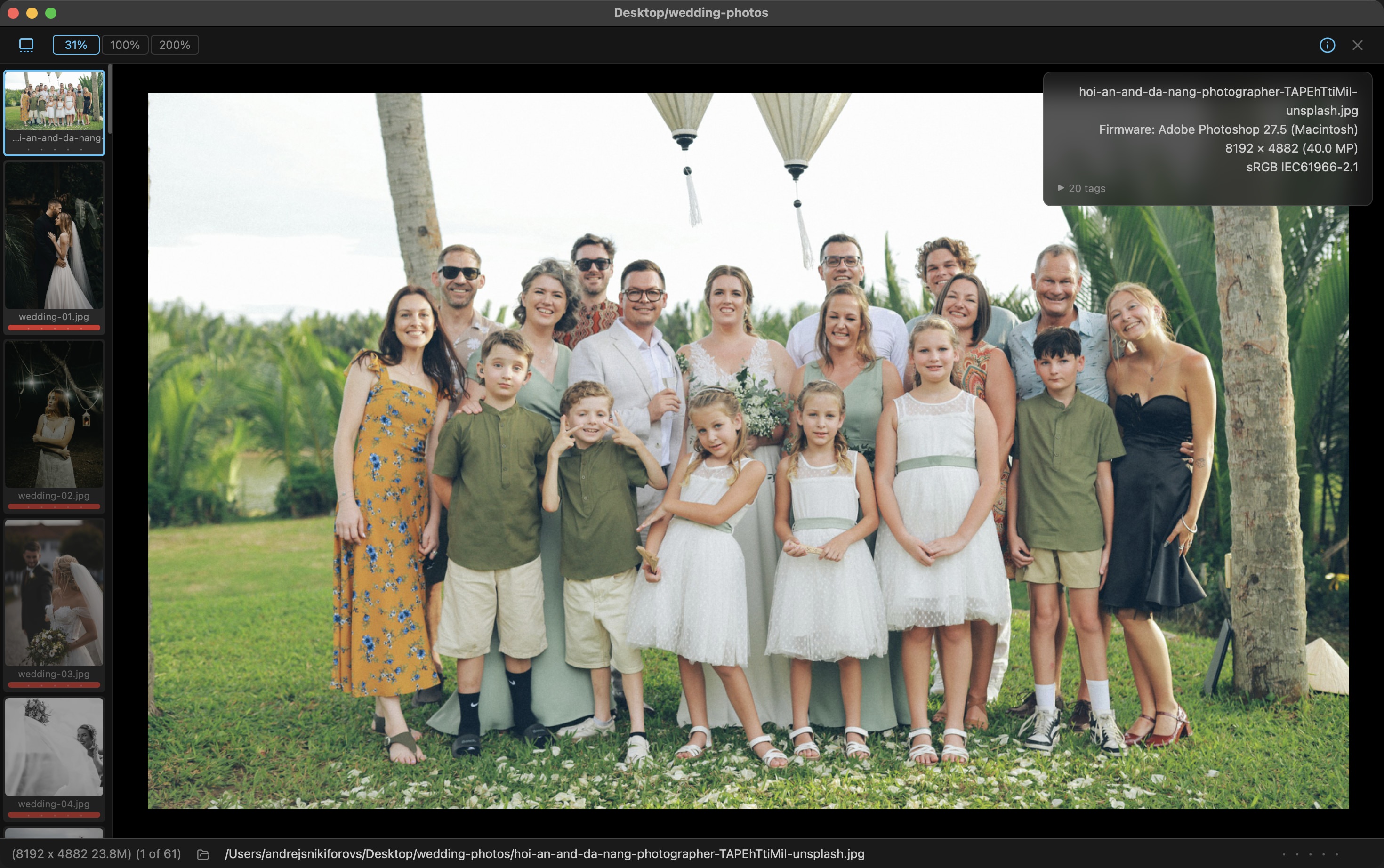
Opening and closing
Press Space — the photo opens full-size. Space or Esc — returns you to the gallery.
Viewing a selection
When 2 or more photos are selected before opening, the viewer steps through only those photos (Photo Mechanic style). To browse the entire gallery again, clear the selection before pressing Space.
To compare the same shots side by side, press C instead of Space — that enters Compare mode with multiple panels.
Zoom
Zoom buttons in the viewer toolbar: FIT (fit to screen), 100% (1:1), 200%.
- Tab — toggle between FIT and 100%
- ⌥Tab — toggle between FIT and 200%
- Double-click — zoom into the click point
- Mouse wheel — smooth zoom
- Pinch on the trackpad
In zoom mode, drag with the mouse to pan.
Filmstrip
Press T — a strip of neighboring photo thumbnails appears at the bottom of the screen. Click any of them to jump to it quickly.
Photo info
Press I — an info panel opens with details: camera, lens, shutter speed, ISO, focal length, capture date, resolution, color profile, file size.
Faces on photo
F — open FaceBrowse on the right: crops of all faces in the current photo for quickly checking expressions and closed eyes.
FaceBrowse in the viewer has its own independent state — closing it here does not close the panel in the gallery, and vice versa.
Hold ⌘ to temporarily show face bounding boxes directly on the photo.
Rating and printing
All rating and label keys work in the viewer. ⌘P — print the current photo.